✦ Changelog

What's new in Teddy

New features and improvements in Teddy, newest first. Each entry shows the date it shipped and how to use it.

September 14, 2026

A Booking Website for your shop

Teddy can give you a shop website from Setup > Booking Website. Pick a template and colors, and it fills in with your pictures, prices, hours, and contact info. It works even if you don't turn on online booking. The Booking Website starts on Core. The online booking page was also redesigned with your theme colors on September 2, 2026.

How to use it:
Go to Setup > Booking Website. Pick a template and colors.
a-booking-website-for-your-shop
October 21, 2026

A Back button when you start adding a client

If you tap Add New Client and change your mind, you can go back to the screen you were on, instead of being stuck on the form.

How to use it:
Tap Add New Client. If you change your mind, use Back to return to the screen you were on.
a-back-button-when-you-start-adding-a-client
October 21, 2026

Pet weight and more detail on the pet card while booking

When you book, the pet card now shows weight and other stored pet details, not just name, type, and breed. There's also a way to go back if you pick the wrong pet.

How to use it:
When you book, look at the pet card for weight and other stored details. If you pick the wrong pet, you can go back.
pet-weight-and-more-detail-on-the-pet-card-while-booking
October 21, 2026

Behavior and pet codes on the client profile summary

The pet summary on the client page now shows behavior and pet codes, so you don't have to open the pet profile to see them.

How to use it:
Open a client page. The pet summary shows behavior and pet codes.
behavior-and-pet-codes-on-the-client-profile-summary
October 21, 2026

Checked Out time on the appointment card

When checkout finishes, the appointment history now logs a Checked Out time, so you can see when payment was actually completed, not just when the appointment was marked completed.

How to use it:
Open an appointment and check the history after checkout. You'll see a Checked Out time.
checked-out-time-on-the-appointment-card
October 21, 2026

Ask Teddy can list who has (and hasn't) signed agreements

You can ask Teddy for clients with appointments this week who have not signed a policy, get a clear table, and have it offer to text the signing link. It splits upcoming visits from past ones, so you can follow up with the people still coming in.

How to use it:
Ask Teddy for clients with appointments this week who have not signed a policy. You'll get a table, and it can offer to text the signing link.
ask-teddy-can-list-who-has-and-hasnt-signed-agreements
October 22, 2026

Reassign appointments when a staff member leaves

When you deactivate or delete a staff member who still has upcoming visits, Teddy asks what to do with those appointments. You can move them in bulk or one by one, and Teddy warns you if a move would conflict. There's a transfer button in Settings if you need to shift part of the book.

How to use it:
Deactivate or delete a staff member who has upcoming visits, and you'll get a chance to reassign them. You can also use the transfer button in Settings.
reassign-appointments-when-a-staff-member-leaves
October 26, 2026

Agreements and vaccine uploads on online booking

Clients can sign agreements and upload vaccine records when they book online. They can also upload vaccine records on the intake form.

How to use it:
Turn these on under Booking Website > Booking Settings. Vaccine upload lives under the vaccine question. Clients can also upload vaccine records on the intake form.
agreements-and-vaccine-uploads-on-online-booking
October 29, 2026

More templates for your Booking Website

You can now choose from 6 templates for your Booking Website. That's 5 new ones on top of the first.

How to use it:
Go to Setup > Booking Website and pick a template.
more-templates-for-your-booking-website
October 29, 2026

Color-coded blocked time on the calendar

When you create a block, you can pick a color for it. That color fills the block on day, week, and month views, on a phone and on a computer, so lunch, time off, and other blocks are easier to tell apart.

How to use it:
When you create a block, pick a color. That color shows on day, week, and month views, on a phone and on a computer.
color-coded-blocked-time-on-the-calendar
October 29, 2026

Clearer warnings when a booking lands on blocked time

If you book a one-off or a recurring series over a blocked day, Teddy now calls out the overlap and lists the dates that hit a block. You can still book over a block if you need to, but the warning is harder to miss.

How to use it:
Book a visit or a recurring series that lands on a blocked day. Teddy lists the dates that hit a block.
clearer-warnings-when-a-booking-lands-on-blocked-time
October 29, 2026

Turn an existing appointment into a recurring one

If an appointment is already on the calendar, you can edit it and set it to repeat. You don't have to start over. If a regular wants the usual every six weeks, you can make the visit they already have into a repeating one. The same option is there when you schedule a request from Pipeline.

How to use it:
Edit an appointment that's already on the calendar and set it to repeat. You can do the same when you schedule a request from Pipeline.
turn-an-existing-appointment-into-a-recurring-one
October 29, 2026

Hide Reports, Settings, and calendar revenue from staff

Owners can turn off a staff member's access to Settings, Reports, and the revenue numbers on the calendar.

How to use it:
Open a staff member in Settings. You can turn off access to Settings, Reports, and the revenue numbers on the calendar.
hide-reports-settings-and-calendar-revenue-from-staff
November 2, 2026

A Back button on the appointment window

The appointment window now uses Back, with an arrow, where an "x" or Cancel used to make it feel like you were canceling the visit.

How to use it:
Open an appointment. Use Back (with the arrow) when you want to leave the window.
a-back-button-on-the-appointment-window
November 2, 2026

Inactive clients can book online again

If an inactive client books online, the request now goes through, the client is reactivated, and the request shows up in Pipeline like any other. Blocked clients are still stopped and asked to call the shop. "Request sent" shows after Teddy accepts the request.

How to use it:
This happens in the online booking flow. If an inactive client books, the request shows up in Pipeline and the client is reactivated. Blocked clients are still asked to call the shop.
inactive-clients-can-book-online-again
November 2, 2026

Limit online booking to existing clients

You can set online booking so a new phone number cannot book, while existing clients still can. Those two options can't both be turned off.

How to use it:
In your online booking settings, you can stop a new phone number from booking, while existing clients can still book. You can't turn both of those options off.
limit-online-booking-to-existing-clients
November 2, 2026

Ask Teddy can remember payroll rules

You can save pay rules in Ask Teddy by staff member, including a default percent, a tips percent, and different rates for a service, a category, or an add-on. When you run payroll, Teddy applies those saved rules and shows a breakdown.

How to use it:
In Ask Teddy, save pay rules for a staff member. When you run payroll, Teddy applies those rules and shows a breakdown.
ask-teddy-can-remember-payroll-rules
November 2, 2026

Drag an appointment to a new time on the calendar

You can click an appointment and drag it to another time or day on the calendar. If a client calls to come in later, you don't have to open the visit and edit the time.

How to use it:
Click an appointment on the calendar and drag it to another time or day.
drag-an-appointment-to-a-new-time-on-the-calendar
November 9, 2026

"First available" stays as the client's preference

If a client picks First available on an online booking request, that preference now stays on the request in Pipeline and on the appointment. It stays as First available, even after you assign a groomer.

How to use it:
Check a First available request in Pipeline or on the appointment. The preference stays as First available after you assign a groomer.
first-available-stays-as-the-clients-preference
November 11, 2026

A confirm step before you decline a booking request

Decline in Pipeline now opens a review step before the request is turned down. You can add a reason, choose whether to text the client, or keep the request. That way a quick tap on a busy Saturday doesn't turn someone away by mistake.

How to use it:
When you decline a request in Pipeline, you'll see a review step before it goes through.
a-confirm-step-before-you-decline-a-booking-request
November 11, 2026

Printed daily appointment cards show the latest note

Printed daily appointment cards now show the latest note by default, so the pages stay readable instead of dumping the whole note history. Print is on desktop for now.

How to use it:
On a computer, print the daily appointment cards. The latest note shows by default.
printed-daily-appointment-cards-show-the-latest-note
November 11, 2026

See client notes while you book

When you open the booking window, the client's newest note shows right there. You can page through older notes without leaving the calendar, on a computer or a phone, so details like a preferred groomer are in front of you as you pick the time.

How to use it:
Open the booking window for a client. The newest note is in the window. Tap or click to view older notes if you need the history.
see-client-notes-while-you-book
November 16, 2026

First available is selected when a client starts online booking

When a client starts an online booking, First available is already selected, and the calendar and times show right away. They don't have to tap First available first.

How to use it:
This is on the client's online booking flow. First available is selected when they start, and the calendar and times show right away.
first-available-is-selected-when-a-client-starts-online-booking
November 16, 2026

Today's date stands out in month view

The current day is highlighted in the main month view, so it is easier to find today at a glance, on a phone and on a computer.

How to use it:
Open the calendar in month view. Today's date is highlighted on a phone and on a computer.
todays-date-stands-out-in-month-view
November 16, 2026

See the pet's name and breed on the calendar

Each calendar card now shows the pet's name and breed, so you can tell who is in the chair without opening the appointment. On visits longer than 30 minutes, the first pet note shows on the card too. On a computer, hover a card to preview notes and more detail.

How to use it:
Look at your calendar. The card shows the pet name and breed. For a longer visit, the first note is on the card. On a computer, hover a card to see more.
Teddy day calendar where each appointment card shows the pet name and breed, like Biscuit (Golden Retriever)
see-the-pets-name-and-breed-on-the-calendar
November 16, 2026

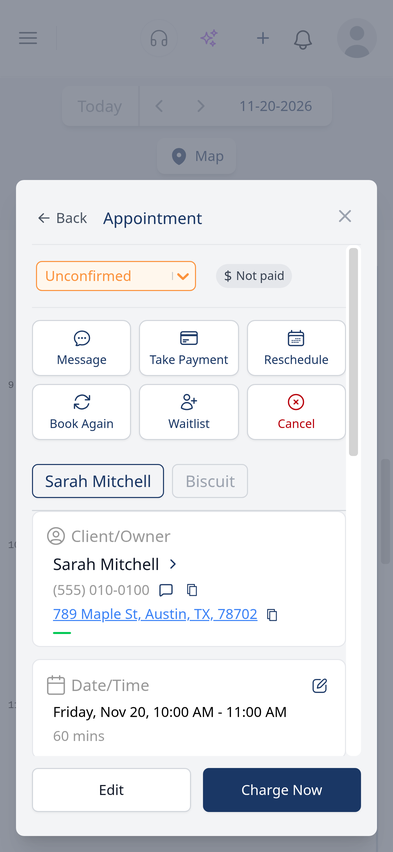
Reschedule, cancel, and more, right on the appointment

Your busiest moves are now on the appointment details screen on your phone. Tap Reschedule, Cancel, or one of the other common actions without digging through Edit or a status menu. After you save a new time, a short message shows the new date and time, so you can confirm the move without hunting for the card. The edit screen also labels Edit date and time, Edit pet, and Remove pet.

How to use it:
Open an appointment on your phone. The actions are on the details screen. After you reschedule, look for the short message with the new date and time.
Teddy appointment details on a phone with Message, Take Payment, Reschedule, Book Again, Waitlist and Cancel buttons
appointment-quick-actions